From the left sidebar, click Vehicles, then click the "Add Vehicle" button at the top-right of the page. This opens the Add New Vehicle form. You must be logged in as Fleet PIC or Admin.
Copy this sample data exactly to register a pickup truck for testing:
sky_lift. These are legally mandatory — the system will block requisition if they are expired.Click "Add Vehicle". You will be redirected to the Vehicles list. Find WKL 5522 in the list. Its status should show Available.
Click Requisitions in the sidebar, then "New Requisition". This opens the New Vehicle Requisition form. You are filling in LGT-P02-F001 Section A — the pre-trip request.
After entering Destination and Estimated Days, click the purple "AI Suggest" button. Gemini will:
- Score all available vehicles (0–100)
- Rank by service buffer, expiry dates, and suitability for the destination
- Show reasons for each recommendation
- Highlight vehicles with critical alerts in red
- Match vehicle type to your task — e.g. "repairing high building" will recommend a sky lift, not a van
"Best service buffer (2,680 km remaining). Road tax and insurance valid through November 2026. Pickup truck suitable for outstation site visit to Pahang."
Click "Submit Requisition". The form is assigned a reference number (e.g. VRF-2026-0042) and status changes to Pending Fleet PIC.
Log in as Fleet PIC. Go to Requisitions. Filter by Status: Pending Fleet PIC. Open VRF-2026-0042.
Check the following before verifying:
- Vehicle WKL 5522 is available on the requested dates
- Requestor has a valid Undertaking Letter on file
- Insurance and road tax are valid for the full trip duration
- No critical alerts on the selected vehicle
On the requisition page, scroll to "No BPE Vehicle Available?" panel. Click "Mark as Rental Vehicle", enter the vendor name and PO reference, then click "Confirm Rental".
The requisition shows a RENTAL VEHICLE badge in Section A. The pre-trip BPE inspection is not required — proceed straight to HOD approval and handover.
At the bottom of the requisition, click "Verify & Forward to HOD". Status changes to Pending HOD. HOD is notified automatically.
Log in as HOD or PM. Go to Requisitions, filter by Pending HOD. Open the form and click "Approve Requisition".
Or click "Reject", enter a reason, then click "Confirm Rejection" — the requestor will see the rejection reason.
Stand approximately 3–4 metres from the vehicle for exterior angles. Photos must be clear, taken in daylight or well-lit area. 4 angles are required (Front, Rear, Left Side, Right Side) before the form can be submitted. Odometer, Tires, Documents, Interior, and Damage are optional but recommended.


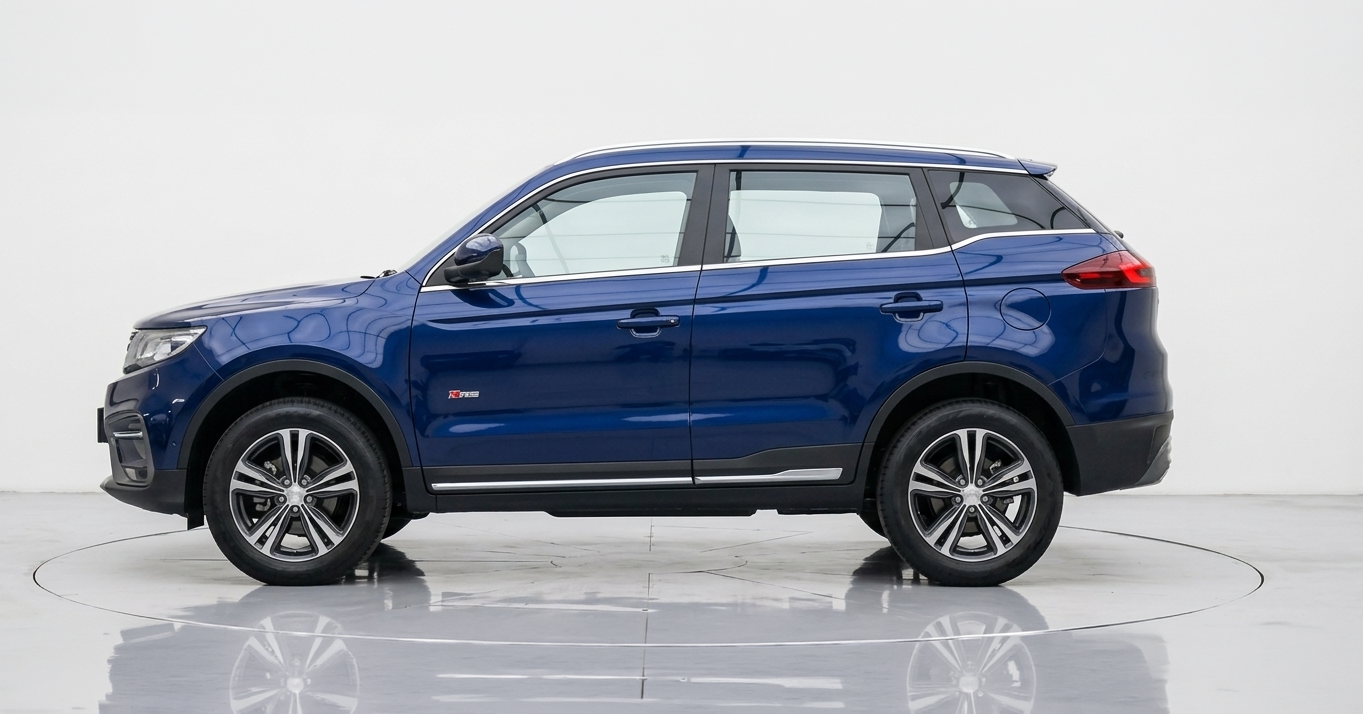
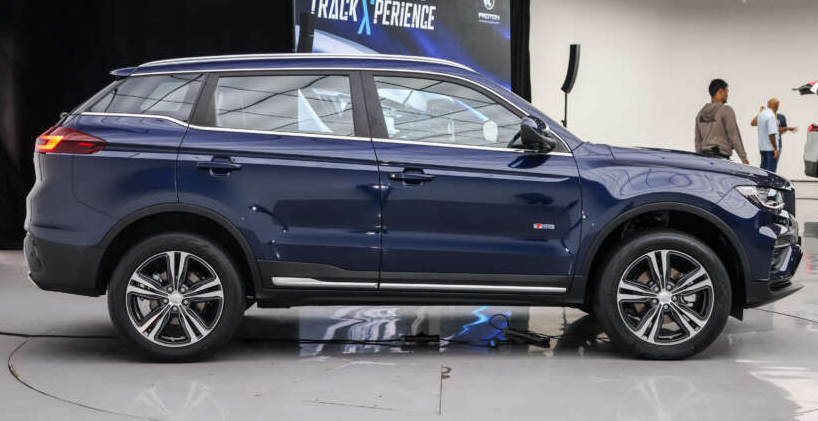
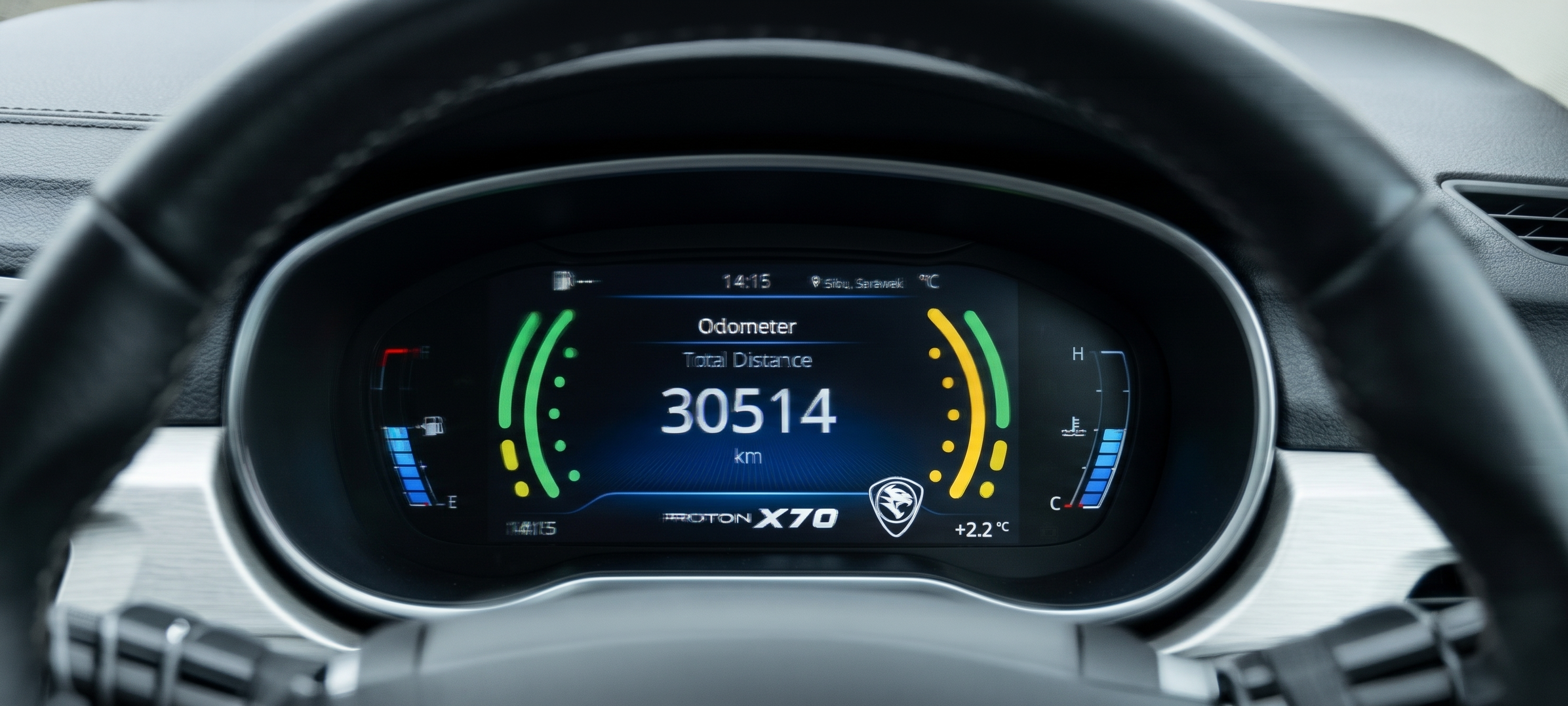
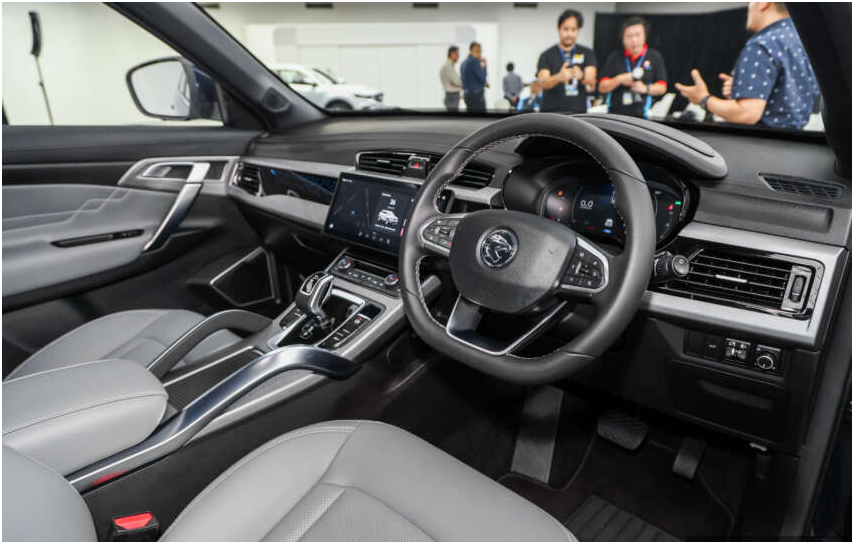
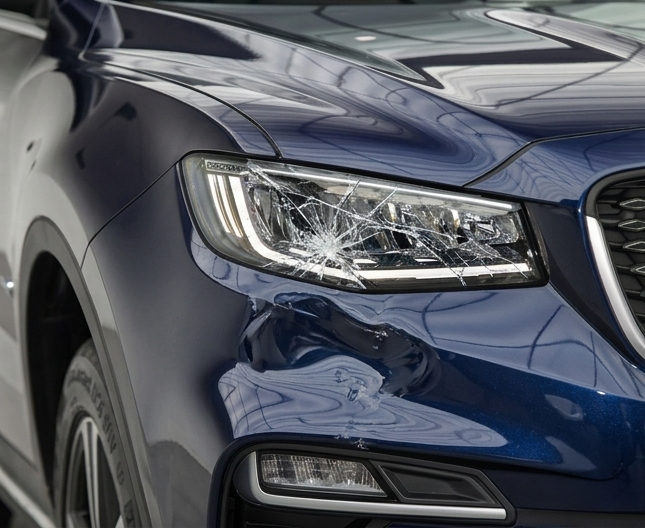
Go to Inspections, click "New Inspection". Link it to requisition VRF-2026-0042, set type to Request (before handover). Click "Start Inspection". On the next screen, upload the 7 photos downloaded above — tag each with the correct angle.
When you upload the odometer photo (tagged odometer), the system automatically triggers OCR AI. Wait 3–5 seconds for the km value to auto-fill.
Click the purple "AI Damage Scan" button. Gemini analyses all 4 exterior photos (front, rear, left, right). After ~10 seconds you'll see a result panel like this:
Safe to proceed: ✅ Yes
Finding 1 — Rear bumper, left corner: Severity 2 — Minor scuff, cosmetic only. Monitor.
Finding 2 — Front left tyre: Severity 1 — OK, no visible wear issues.
Summary: Vehicle is roadworthy. Pre-existing cosmetic scuff on rear bumper noted.
Click "Auto-apply to checklist" to pre-fill the checklist rows with AI findings. Then click "Confirm findings" to lock the AI result.
Go through the physical vehicle and rate each item. Use this reference:
| Item | Rating | Notes |
|---|---|---|
| Steering Wheel | 1 ✓ | OK |
| Brake System | 1 ✓ | OK |
| Air Conditioning | 1 ✓ | OK |
| Seatbelt (all) | 1 ✓ | OK |
| Dashcam | 1 ✓ | Operational |
| Dashboard Alarm | 2 ⚠ | Check engine light — monitor |
| Headlights | 1 ✓ | OK |
| Brake Lights | 1 ✓ | OK |
| Tires | 1 ✓ | Tread depth ~4mm, manufactured 2023 |
| Engine Oil Level | 1 ✓ | OK |
| Bumper (front) | 2 ⚠ | Pre-existing scuff — noted in AI scan |
Once photos are uploaded and no critical items are rated 3, click "Submit Inspection". The system generates e.g. INS-2026-0118 linked to VRF-2026-0042.
In Requisitions, open VRF-2026-0042. Status must be Approved and an inspection record (INS-2026-0118) must be attached.
Click "Hand Over Vehicle (Mark In Use)". Status changes to In Use and vehicle status becomes in_use. The vehicle is now locked — it will not appear in AI vehicle matching for other requests until returned.
The requisition page shows an Emergency & Accident Reporting panel automatically whenever a vehicle is in active use (status = In Use). Follow the steps shown there:
- Ensure personal safety. Move to a safe location.
- Call 999 (Malaysia Emergency) if there are injuries or a road hazard.
- Call 03-2052 9999 (PDRM Bukit Aman) or nearest police station to lodge a report.
- Notify Fleet PIC immediately — same day, no exceptions (LGT-P02 §5.1.1.1).
- Do not admit liability or sign any document on-site without Fleet PIC guidance.
- Click "Log Urgent Repair / Breakdown Report" on the requisition page so Fleet PIC and PM are notified in the system.
Log in as Requestor. Open VRF-2026-0042. Once a return inspection exists, click "Complete Section B (Return Vehicle)".
Upload the odometer photo from the return trip — AI will OCR the reading AI and check for mileage anomalies.
Go to Inspections → New Inspection. Set type to Return (upon return), link to VRF-2026-0042, click "Start Inspection". Repeat the 7-photo process and run AI Damage Scan again.
After the return inspection is submitted and approved, click "Close Requisition". Status changes to Closed. Vehicle status returns to available.
Total km driven = 54,842 − 54,320 = 522 km. This is recorded and the AI mileage anomaly check runs automatically.
Click Repairs in the sidebar, then "New Repair Request". This opens the New Repair Request form. Select vehicle WKL 5522.
Urgency: 4 — URGENT
Do NOT use vehicle: YES
Action: Contact Fleet PIC immediately. Do not start the engine. Arrange towing to workshop.
Notify: Fleet PIC, PM
Urgency: 2 — Monitor
Action: Log in inspection checklist remarks. Notify Fleet PIC via WhatsApp. Schedule gas top-up at next service.
Review the AI classification. Accept the category or change it if needed. Click "Submit Request" (button changes to "Log Urgent Request" if urgency ≥ 4). Reference number e.g. RPR-2026-0031 is generated.
Go to Documents → Upload. Use this sample document record:
After upload, click "Index for AI". The system splits the document into ~400-token chunks and creates embeddings using Gemini text-embedding-004. This takes ~30 seconds for a 20-page document.
Click the Q&A tab on the Documents page. Try these sample questions:
Click Undertakings in the sidebar. This page is only visible to Fleet PIC and Admin.
Upload the signed PDF undertaking letter (Appendix 1 of LGT-P02). Once uploaded and marked Valid, that user can have requisitions approved.
Fleet PIC records when the card was last used (from submitted receipts). The "No receipt yet" warning appears in amber if no receipt has been submitted for the card.
The Active Alerts panel on the Dashboard shows AI-prioritised alerts. Here is what each type means:
• Mileage anomaly — km added with no active requisition
• Sky lift PUSPAKOM overdue
• PMA certificate expired
• Vehicle approaching service due (within 500 km)
• Return overdue — vehicle not returned on expected date
• AI confidence low on odometer OCR
Go to Reports. Click "Generate Monthly Summary". Select the month (e.g. April 2026). This triggers a BullMQ job that:
- Queries all requisitions, inspections, repairs for the month
- Calculates fleet utilisation rate, total km driven, repair costs
- Gemini writes executive summary, findings, and recommendations
- Generates a PDF — download link appears when done (~30 seconds)
The system runs three scheduled background jobs automatically — no action required from Fleet PIC:
Scans for mileage added to vehicles with no active requisition. Creates a critical alert and logs it to the Dashboard.
07:00 daily — Expiry Check
Finds vehicles with road tax, insurance, PMA, PUSPAKOM, or GDL expiring within 30 days. Ranks alerts by operational risk and sends a WhatsApp message to Fleet PIC for warning/critical items.
08:00 every Monday — Weekly Inspection Report
Counts all inspections from the past 7 days (total, action required, daily checks). Sends a WhatsApp summary to Fleet PIC for reporting purposes per LGT-P02 §6.1 notes.
bpe_expiry_alert, bpe_weekly_inspection, bpe_urgent_repair, bpe_action_required. Contact your system administrator if WhatsApp alerts are not arriving.On the Dashboard, each alert has an "Acknowledge" button. Click it after you have taken action (e.g. booked road tax renewal). This removes it from the critical list. Acknowledged alerts are still stored — they appear in the monthly compliance report.
From the sidebar, click Predictions. You'll see four large cards across the top — these are the fleet aggregates: 30-day forecast, 90-day forecast, 365-day forecast, and the count of vehicles flagged at risk. Below that is the Gemini executive summary and a per-category cost breakdown.
Click the purple Refresh All button at the top right. The system queues a job that walks every non-decommissioned vehicle, recomputes deterministic stats, asks Gemini for narratives, and writes everything back to the predictions table. Typical run: 30–90 seconds. The page polls every 3 seconds until the new generated_at timestamp arrives.
predict_fleet automatically at 05:00 every day, so you usually do not need to click Refresh manually unless you just imported new data.Each vehicle row shows four prediction blocks:
💸 Cost Forecast — projected MYR spend over 30 / 90 / 365 days. Based on the monthly average from the past 12 months × inflation factor 1.05.
🔧 Next Service — predicted calendar date for the next service, based on real km/day usage from inspections, not just the fixed 10,000 km step. If the vehicle is already past its
next_service_km, it shows "OVERDUE".📅 Downtime · Next 90d — windows where the vehicle will be unavailable due to road tax, insurance, PMA, PUSPAKOM, or GDL renewal. Each window includes a 7-day prep buffer.
Each vehicle has a Risk badge in green / amber / orange / red:
3 — Moderate · Schedule the predicted service or renewal in your normal weekly planning.
4 — Urgent · Action this week. The system also creates an active Alert on the Dashboard (severity = warning).
5 — Critical · Action today. Dashboard shows the alert as critical. Consider pulling the vehicle from any upcoming requisition.
alerts table with type = 'prediction', so they show up on the main Dashboard alongside expiry alerts and anomaly alerts.If you've just logged a new repair or a fresh inspection for one vehicle, click the small Refresh button on the right side of that vehicle's card. This runs a single-vehicle predict_vehicle job (a few seconds) without re-processing the whole fleet.
Use the three filter chips above the vehicle list:
- All Vehicles — every active vehicle, sorted by risk score then failure ETA.
- At Risk Only — risk score 4 or 5. Use this view in your daily standup.
- Service ≤ 30 days — vehicles where the predicted service date falls within the next month, so you can pre-book the workshop.
Predictions are decision support, not autopilot. The system never auto-orders parts, books workshops, or pulls vehicles from active requisitions. Fleet PIC always confirms the action — exactly like every other AI output in BPE-FMS. Numbers come from real database rows; Gemini only adds the narrative reasoning. If the worker is offline or Gemini fails, the page still shows accurate baseline statistics.